

Appearance
Code Mode
Code Mode is an alternative to the form-based connector editor. Instead of filling in fields one by one, you define the entire connector as a single JSON object. Use Code Mode when you want to copy configurations between environments, share connector setups with teammates, or manage connectors as code.
Use the form editor for day-to-day setup. Switch to Code Mode when you need to bulk-edit fields, paste a configuration from another environment, or version-control the full connector definition. Switching between the form editor and Code Mode is non-destructive — both views reflect the same connector definition and changes in either view are preserved.
Toggle Code Mode in the connector editor to switch between the visual form and the JSON view:
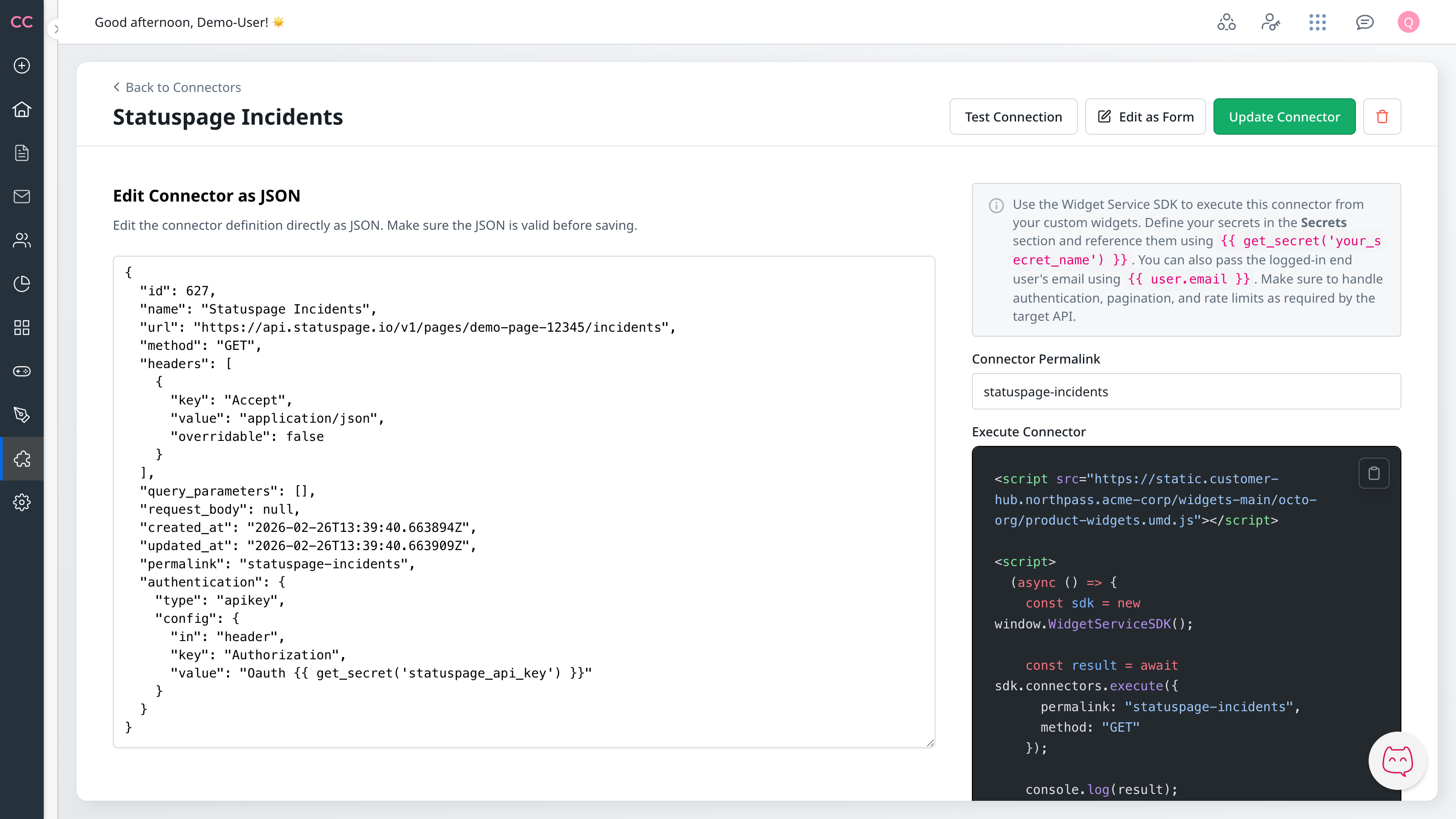
JSON field reference
The JSON object in Code Mode maps directly to the fields in the form editor. For a description of each field, see Configuration.
| JSON key | Form field | Notes |
|---|---|---|
name | Connection Name | Required |
url | Endpoint URL | Required; supports Jinja2 |
method | HTTP Method | GET, POST, PUT, PATCH, DELETE, HEAD, OPTIONS |
headers | Headers | Array of {key, value, overridable} objects |
query_parameters | Query Parameters | Array of {key, value, overridable} objects |
path_parameters | Path Parameters | Array of {key, value?, overridable?} objects. Each key must match a {{ pathParams.X }} reference in url. See Dynamic URL Paths. |
authentication | Authentication Type | Object with type and config |
request_body | Payload Template | Jinja2 template string |
response_body | Response Body | Jinja2 template for response transformation |
response_content_type | Response Content-Type | Content-Type override for the response |
Authentication object
The authentication field takes an object with a type string and a config object whose keys depend on the type. For the exact JSON structure and fields of every supported type, see Authentication object.
Validation on save
When you save in Code Mode, the platform validates the JSON and all field values. If the JSON is not valid, an error appears with the line and column number. If a field value is invalid (for example, an unsupported HTTP method), a field-level error appears next to that field. Fix the errors and save again.
Next Steps
- Configuration — Full list of connector fields and their requirements
- Authentication — Authentication type options and JSON structure
- Template Variables — Jinja2 syntax for URLs, headers, and payload bodies