

Appearance
Multiple Organizations
This guide covers scenarios for working with multiple GitHub organizations — the setup you need when several GitHub organizations feed extensions into a single community.
Prerequisites
- At least one connected GitHub organization (see Connect Your GitHub Account)
- Understanding of basic repository settings (see Repository & Branch Settings)
When You Need Multiple Organizations
You might need to connect multiple GitHub organizations when:
- Different teams: Separate organizations for different departments or teams
- Client work: Managing extensions for multiple clients with their own orgs
- Environment separation: Using different orgs for production vs development
- Company structure: Parent company with multiple subsidiary organizations
Step 1: Adding Another Organization
To connect an additional GitHub organization:
- Go to Integrations → Developer Studio → Sources
- Click

 Manage Accounts
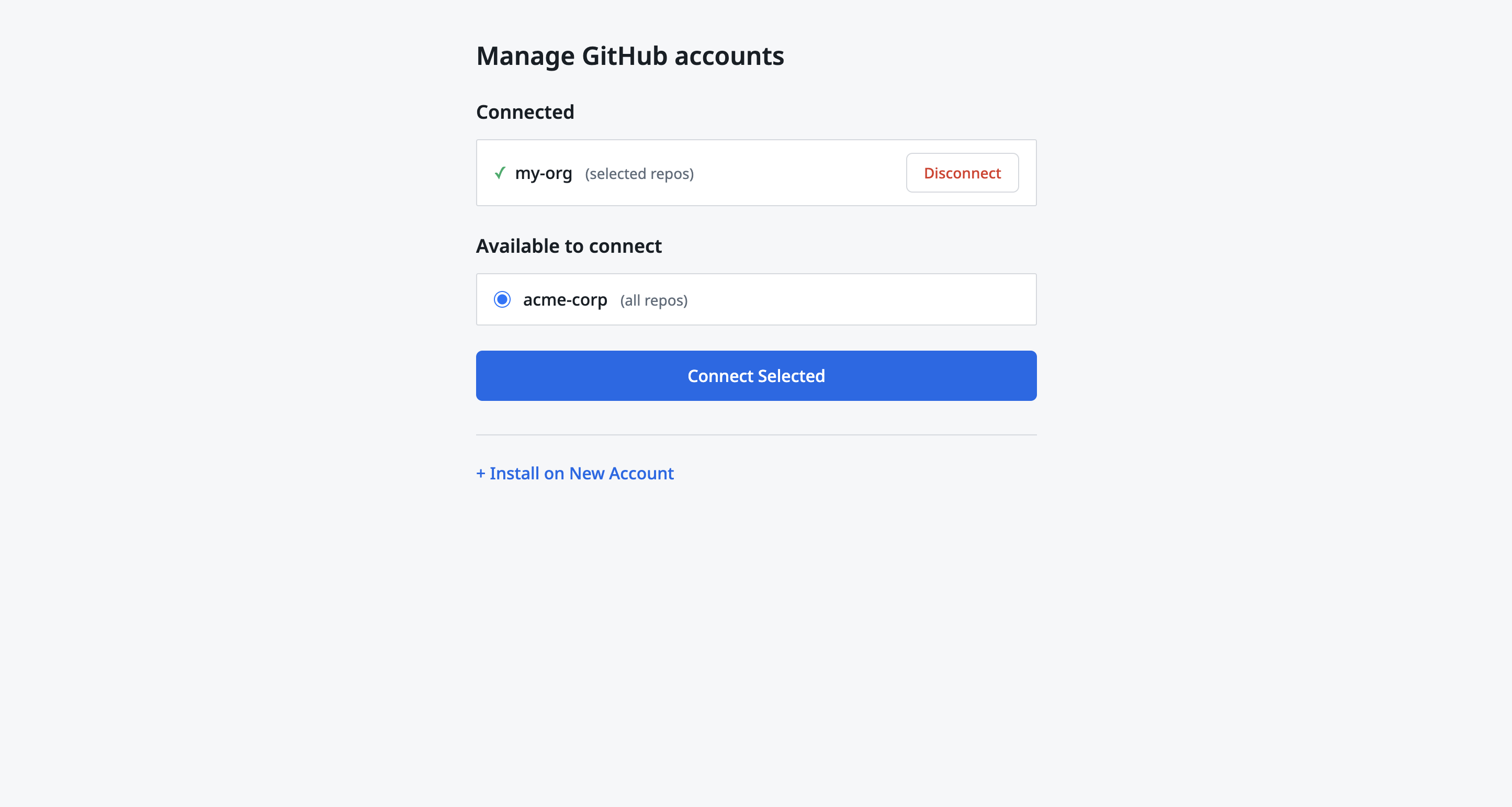
 - In the installation picker, click "Install on New Account"
- Follow GitHub's installation wizard for the new organization
- Select which repositories to grant access to
- Complete the connection
Note: If the new organization requires admin approval, see Admin Approval.
Step 2: Viewing Connected Installations
To see all your connected and available installations:
- Click Manage Accounts in your Sources settings
- The Manage GitHub accounts page displays all accessible GitHub installations
What you'll see:
- Connected — Accounts already linked to your community (with a checkmark each). You can disconnect any of them using Disconnect; that only removes the link for your community.
- Available to connect — Other installations you can link via Connect Selected
- Install on New Account at the bottom
This page is your view of all available organizations. You can connect more, disconnect linked ones, or install on a new account.
Step 3: Managing Repositories Across Organizations
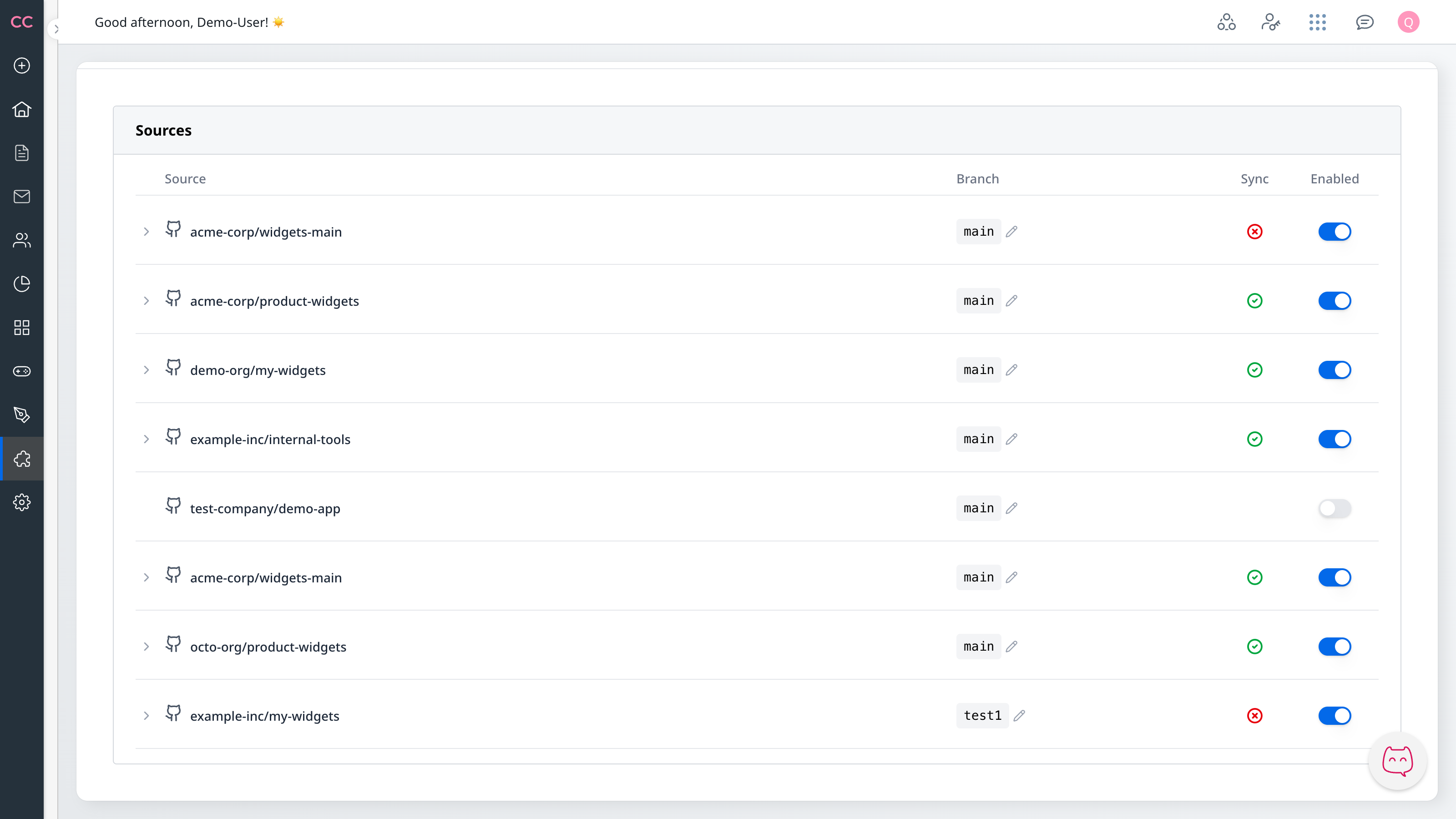
After connecting multiple organizations, your repository list shows all repositories from all connected installations.
How repositories are organized:
- All repositories from all connected organizations appear together
- Each repository shows its source organization
- Enable/disable toggles and branch settings work independently per repository
- Build statuses are tracked per repository
Step 4: Removing an Organization
You can remove a GitHub connection in two ways:
Option A: Disconnect for your community only
Use this when you want to unlink a GitHub account from your community but keep the app installed on GitHub (e.g. other communities may still use it).
- Click Manage Accounts in Sources settings
- On the Manage GitHub accounts page, find the account under Connected
- Click Disconnect next to that account
The account is no longer linked to your community. It appears under "Available to connect" if you want to reconnect later. The app remains installed on GitHub; other communities are unaffected.
Option B: Uninstall the app from GitHub
Use this when you want to remove the app from the organization entirely (affects all communities using that installation).
Important: Uninstalling the GitHub App removes the connection for all communities using that installation, not just your account.
To uninstall:
- Go to your GitHub organization's settings
- Navigate to Settings → Integrations → Applications
- Find the app and click Uninstall
What happens when uninstalled:
- The installation is removed for all connected users
- No new syncs occur from that organization
- All previously published widgets, scripts, and stylesheets from that organization are removed
- Repository configurations are cleaned up automatically
- You can reinstall the app later if needed
Extension Naming
With multiple organizations connected, extension names must stay unique across all of them — see Extension Naming for the naming convention.
Best Practices
Organizing Multiple Organizations
- Use descriptive names: Ensure your GitHub org names clearly indicate their purpose
- Document purposes: Keep track of which org is used for what
- Regular review: Periodically review connected organizations
Access Management
- Principle of least privilege: Only connect organizations you actually need
- Review periodically: Check who has access to each connected org
- Use GitHub teams: Manage access at the GitHub level for consistency
Repository-Level Control
When working with multiple organizations, you have granular control over which repositories publish widgets, scripts, and stylesheets:
- Enable/disable per repository: Each repository can be independently enabled or disabled
- Different branches per repository: Set different watched branches for different repositories
- Independent of other users: Your repository settings don't affect other users connected to the same organization
This allows you to precisely control which content is published without affecting colleagues who may be using the same GitHub organization.
Installation Suspension
GitHub App installations can be suspended in two ways. When this happens, you'll still see the organization in your list, but no updates occur until the suspension is lifted.
If GitHub suspended the installation
You'll see this when your organization has billing issues, policy violations, or GitHub is under maintenance. All publishing stops for everyone connected through that installation.
What to do: Ask your GitHub organization admin to resolve the issue with GitHub directly.
If your organization admin suspended the installation
Your organization's GitHub admin can manually suspend the app. All publishing stops, same as above.
What to do: Contact your organization admin to reactivate the installation.
Troubleshooting
"I can't see an organization I should have access to"
- Verify your membership in that GitHub organization
- Check if the GitHub App is installed on that organization
- Try clicking Manage Accounts again to refresh the picker
"App was uninstalled but extensions still work"
This is expected. Uninstalling stops new syncs but doesn't unpublish existing content. To remove published extensions:
- Disable the repository in Sources
- Or republish with a different configuration — previously published extensions remain available until you do so
"Different people see different organizations"
This is by design. Each user only sees organizations they have access to on GitHub. Check GitHub organization membership if someone should have access but doesn't.
"The app was accidentally uninstalled"
Reinstall the app:
- Click Manage Accounts
- Click "Install on New Account"
- Select the organization and complete installation
Next Steps
- Common Issues — Resolve common issues
- Admin Approval — Handle enterprise approval requirements