

Appearance
Connect Your GitHub Account
Connect your GitHub account or organization so the platform can access your repositories and publish widgets, scripts, and stylesheets.
Prerequisites
- A GitHub account with access to the organization you want to connect
- Access to your Sources settings in the platform
Step 1: Start the Connection
Go to Integrations → Developer Studio → Sources.
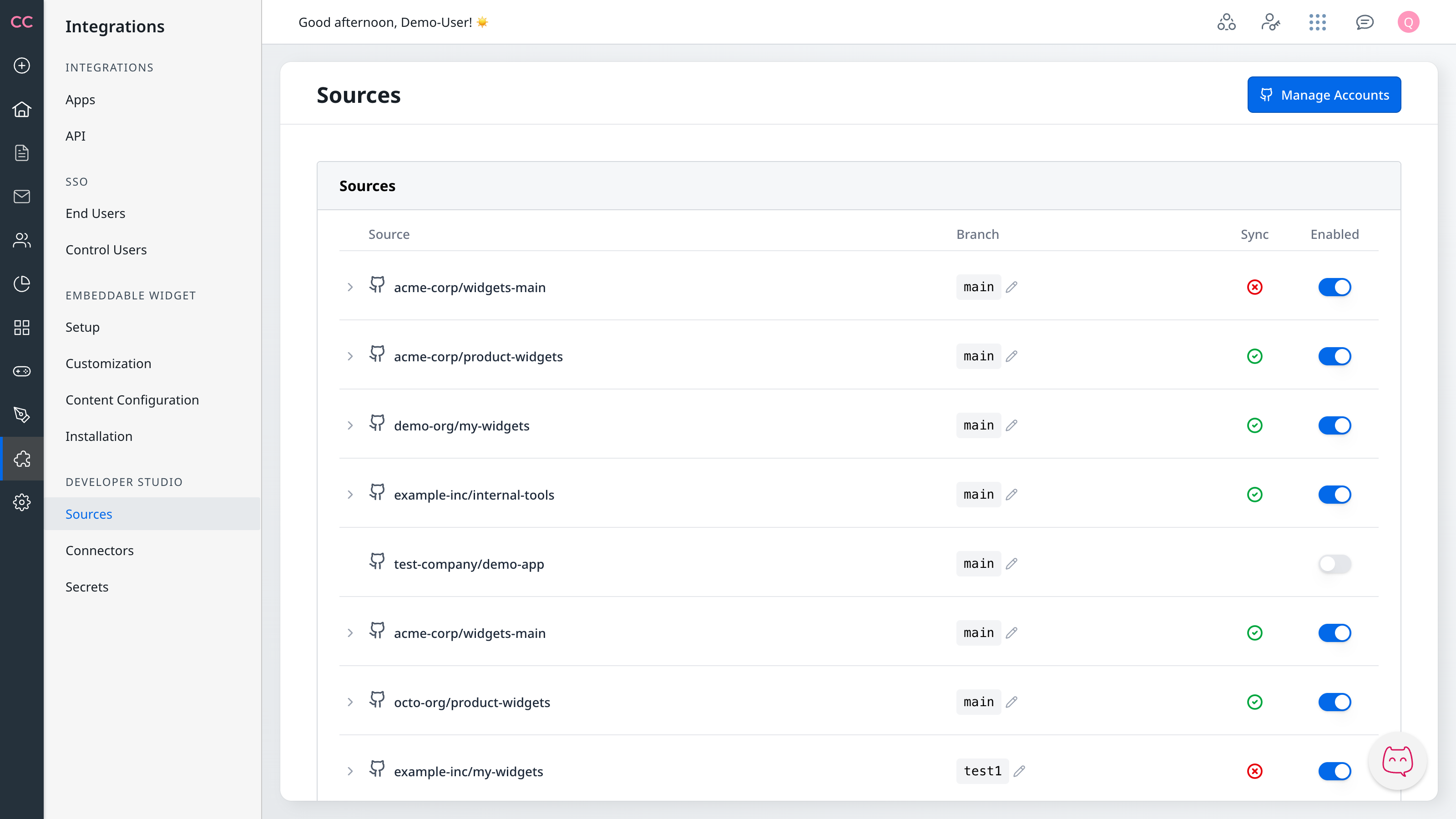
- Locate the

 Manage Accounts button
 - Click to begin the connection process
- You'll be redirected to GitHub
Step 2: Authorize with GitHub
GitHub will ask you to authorize the application.
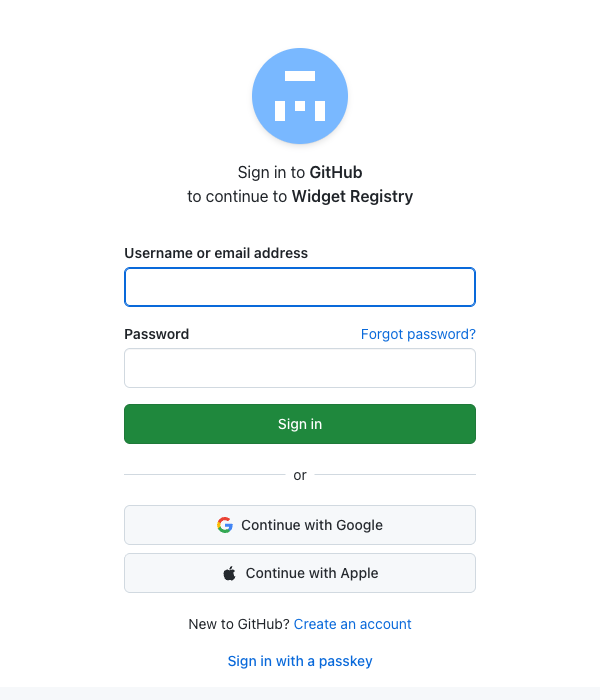
- Review the permissions requested
- Click Authorize to grant access
- You'll be redirected back to select your installation
Note: The application only requests read access to repository contents and metadata. It cannot modify your code.
Note: The connection session expires after approximately 30 minutes. If you step away during the process, you may need to start over by clicking
Step 3: Select Your Installation
After authorization, you'll see the Manage GitHub accounts page.
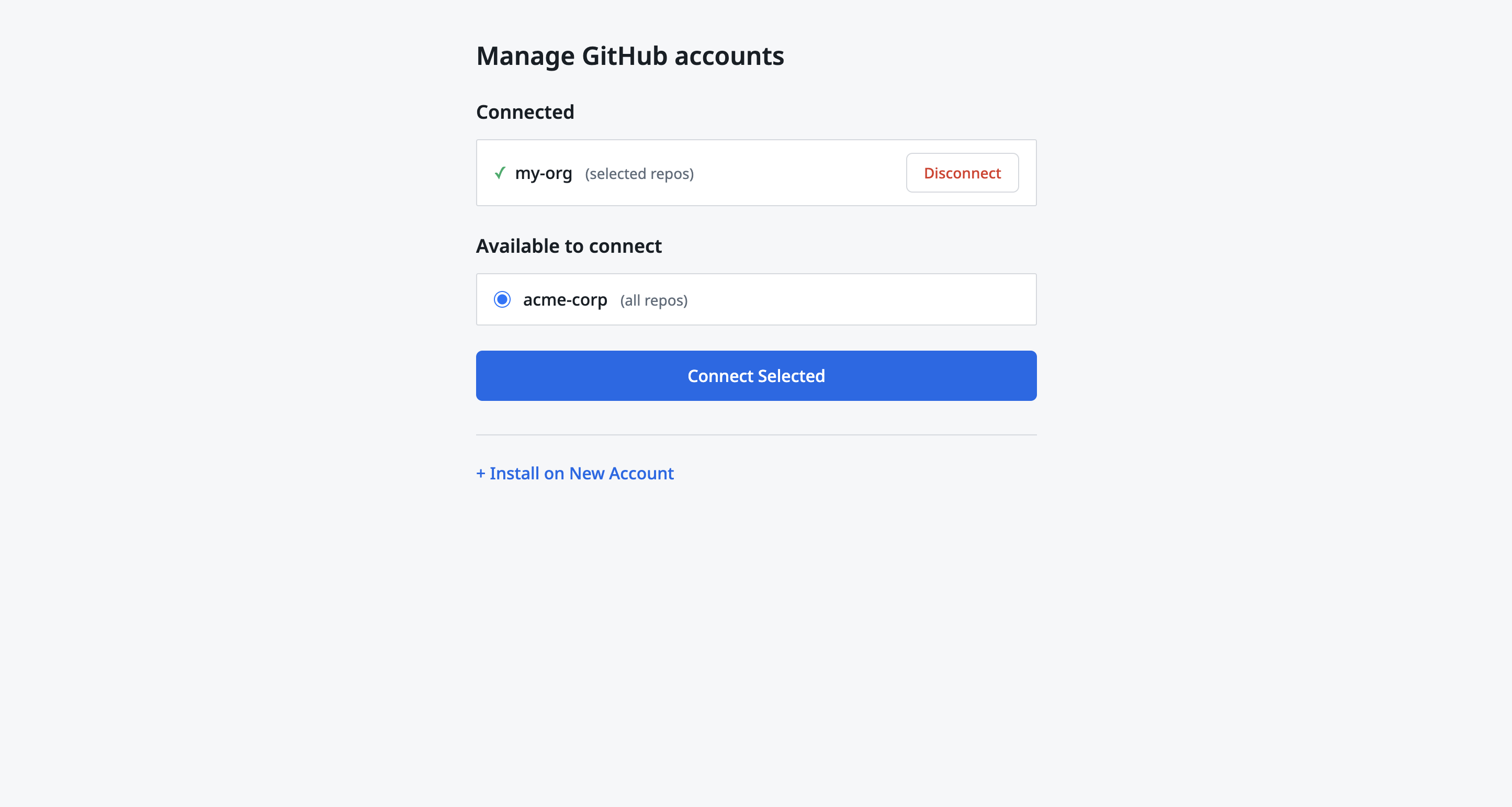
What you'll see:
- Connected — GitHub accounts already linked to your community, each with a checkmark. You can disconnect an account using the Disconnect button; this only removes the link for your community and does not uninstall the app from GitHub.
- Available to connect — Installations you can link. Select one and click Connect Selected.
- Option to Install on New Account at the bottom
To connect an existing installation:
- Under "Available to connect", select the installation
- Click Connect Selected
- The connection completes automatically
To install on a new account:
- Click "Install on New Account"
- Follow GitHub's installation wizard
- Select which repositories to grant access to
Repository access scope
During installation, GitHub asks you to grant access to specific repositories or all repositories in the organization. The platform only reads from repositories you explicitly Enable in your Repository & Branch Settings — it does not process or use any other repositories you grant access to. However, it is your responsibility to grant access only to the repositories you intend to use. You can adjust repository access at any time from your GitHub organization's Settings > GitHub Apps page.
Note: If your organization requires admin approval, see Admin Approval for details.
Step 4: Confirm Connection
After selecting your installation, you'll see a success confirmation.
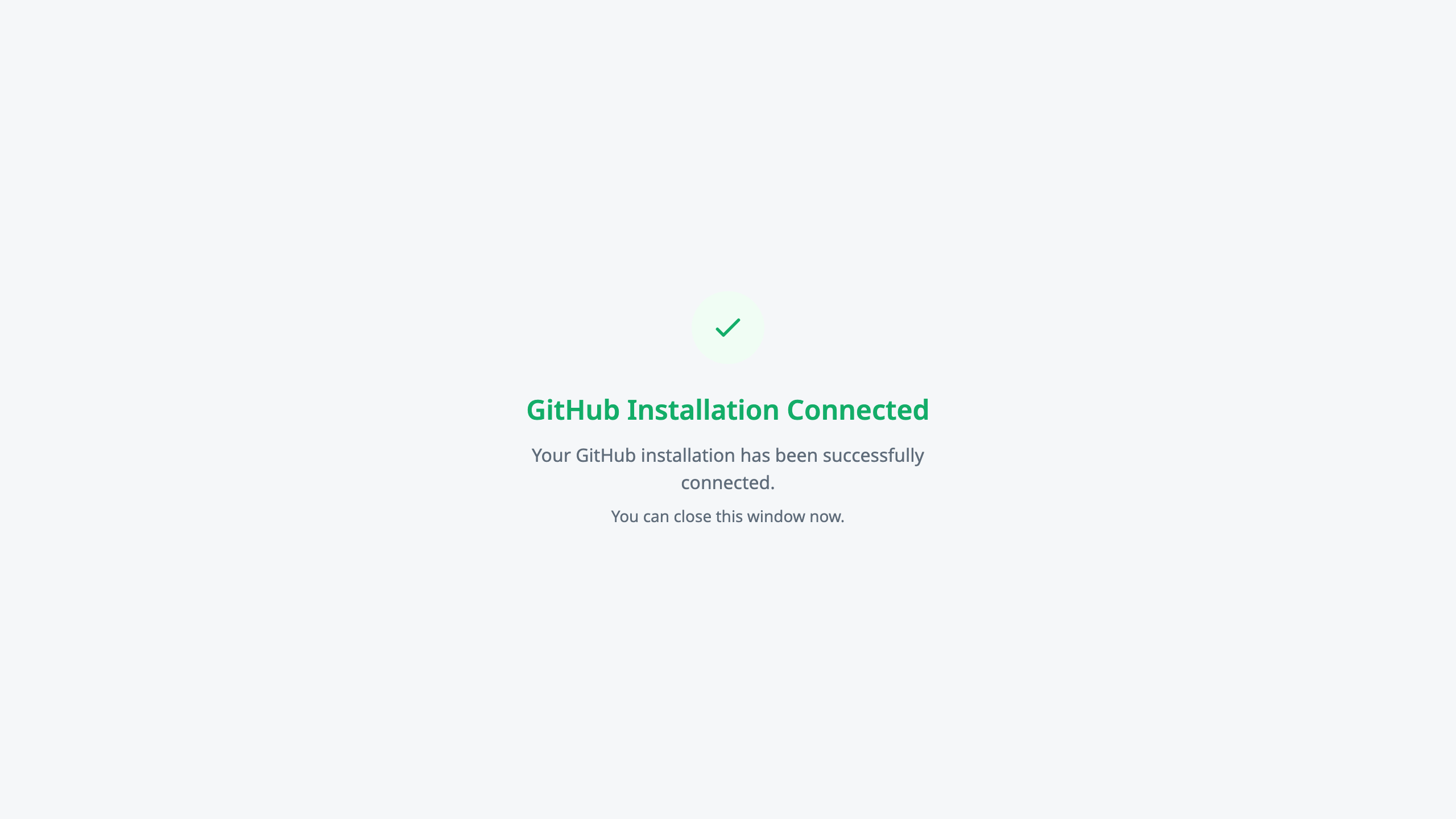
Confirmation indicates:
- Your GitHub organization is now connected
- Repositories are ready to configure
- You can begin setting up widget, script, and stylesheet publishing
Disconnecting an account
To remove a GitHub account from your community (without uninstalling the app from GitHub):
- In Sources settings, click Manage Accounts
- On the Manage GitHub accounts page, find the account under Connected
- Click Disconnect next to that account
The account moves to "Available to connect." You can reconnect later by selecting it and clicking Connect Selected.
Troubleshooting
"My organization doesn't appear in the picker"
- Verify you're a member of the organization on GitHub
- The app may not be installed on that organization yet—click "Install on New Account"
- Your organization may require admin approval—see Admin Approval
"OAuth error during authorization"
- Try signing out of GitHub and signing back in
- Clear your browser cache and cookies
- Talk to your Gainsight team if the issue persists
"Connection seems to hang or timeout"
- Check your internet connection
- Try using a different browser
- Disable browser extensions that might interfere
"Connection keeps failing after multiple attempts"
If you've tried connecting several times in quick succession and it keeps failing:
- Wait an hour before trying again — repeated attempts can trigger rate limiting
- Clear your browser cache and cookies
- Try using a different browser or incognito mode
"Approval was granted but nothing happened"
If your organization admin approved the installation but you're still waiting:
- Return to your Sources settings page
- Click Manage Accounts again
- Your approved installation should now appear in the picker
Tip: If you had the Sources page open in another tab while waiting for approval, it will automatically detect when approval is complete.
For more detailed troubleshooting, see Common Issues.
Next Steps
- Admin Approval — Handle enterprise approval requirements
- Multiple Organizations — Connect multiple GitHub organizations
- Repository & Branch Settings — Choose which repositories sync and which branch to watch
- Registry Reference — Fields for the
extensions_registry.jsonfile your connected repositories must declare