

Appearance
Admin Approval
When connecting your GitHub repositories to the platform, some GitHub Enterprise organizations enforce security policies that require administrator approval before external applications can be installed. This guide explains what happens when admin approval is required and how to complete the setup once approved.
Prerequisites
- A GitHub account with access to your organization
- Knowledge that your organization uses GitHub Enterprise with approval policies
- (Optional) Contact information for your GitHub organization admin
This guide is for you if:
- Your organization uses GitHub Enterprise with strict security policies
- You see a "pending approval" message after attempting to connect GitHub
- Your GitHub organization admin needs to approve external app installations
Which Flow Will You See
When you click 
 Manage Accounts, you'll experience one of two flows depending on whether the app is already installed on your organization:
| Scenario | What You'll See | This Guide? |
|---|---|---|
| App not installed on your org | GitHub's installation wizard with "Install" or "Request" button | Yes |
| App already installed (by you or another community member) | Picker showing existing installations to connect | No approval needed |
How to tell which scenario you're in:
- If you see a list of organizations with "Install" or "Request" buttons → New installation flow (this guide)
- If you see a picker listing existing installations to select → Already installed (just pick and connect)
New Installation Flow (Admin Approval Required)
This section covers what happens when you're installing the app on an organization for the first time and that organization requires admin approval.
Step 1: Initiate GitHub Connection
Go to Integrations → Developer Studio → Sources and click Manage Accounts:
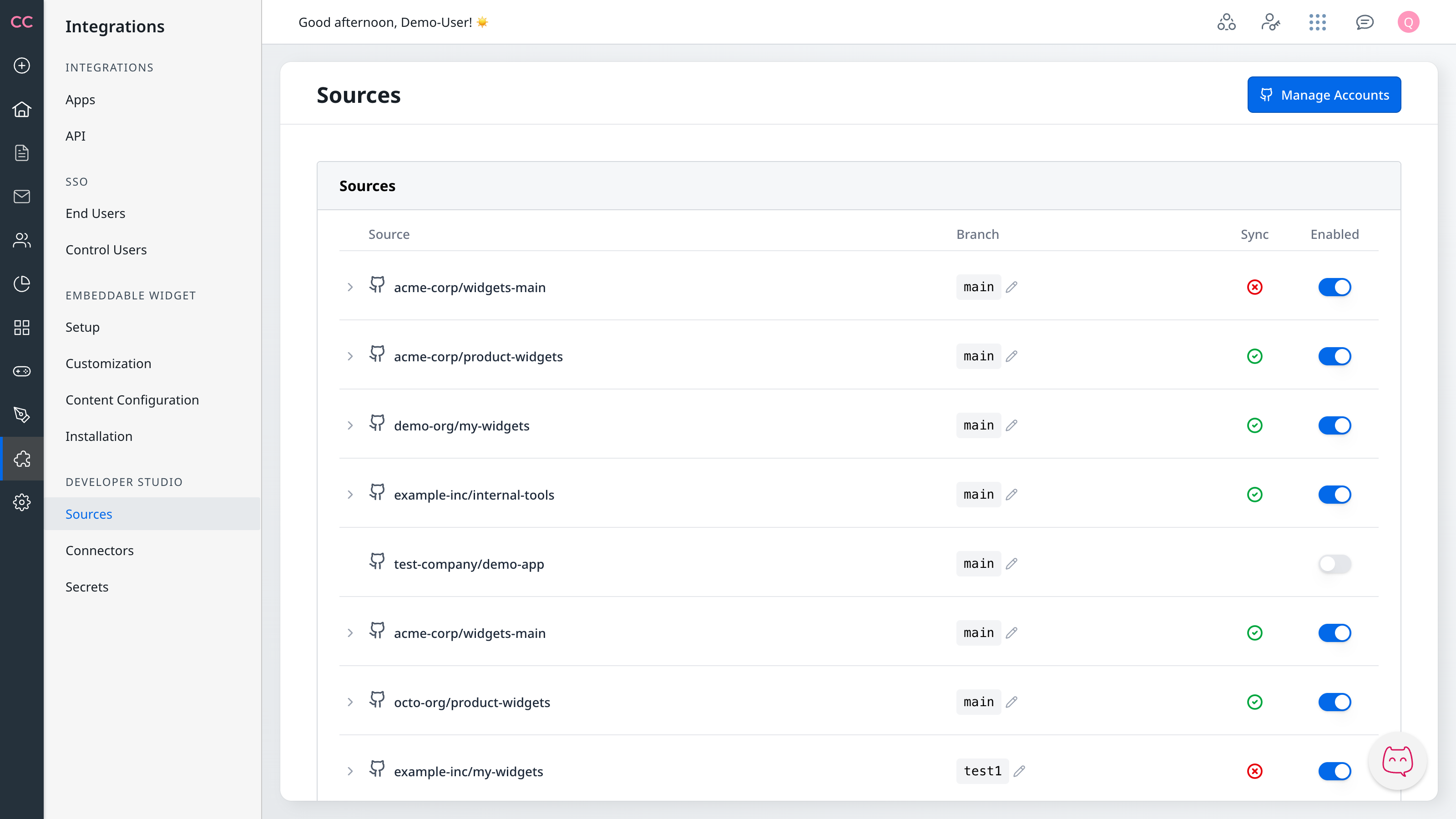
You'll be redirected to GitHub to authorize the application.
Step 2: Request Installation
On GitHub, you'll see the installation page where you select your organization and repositories:
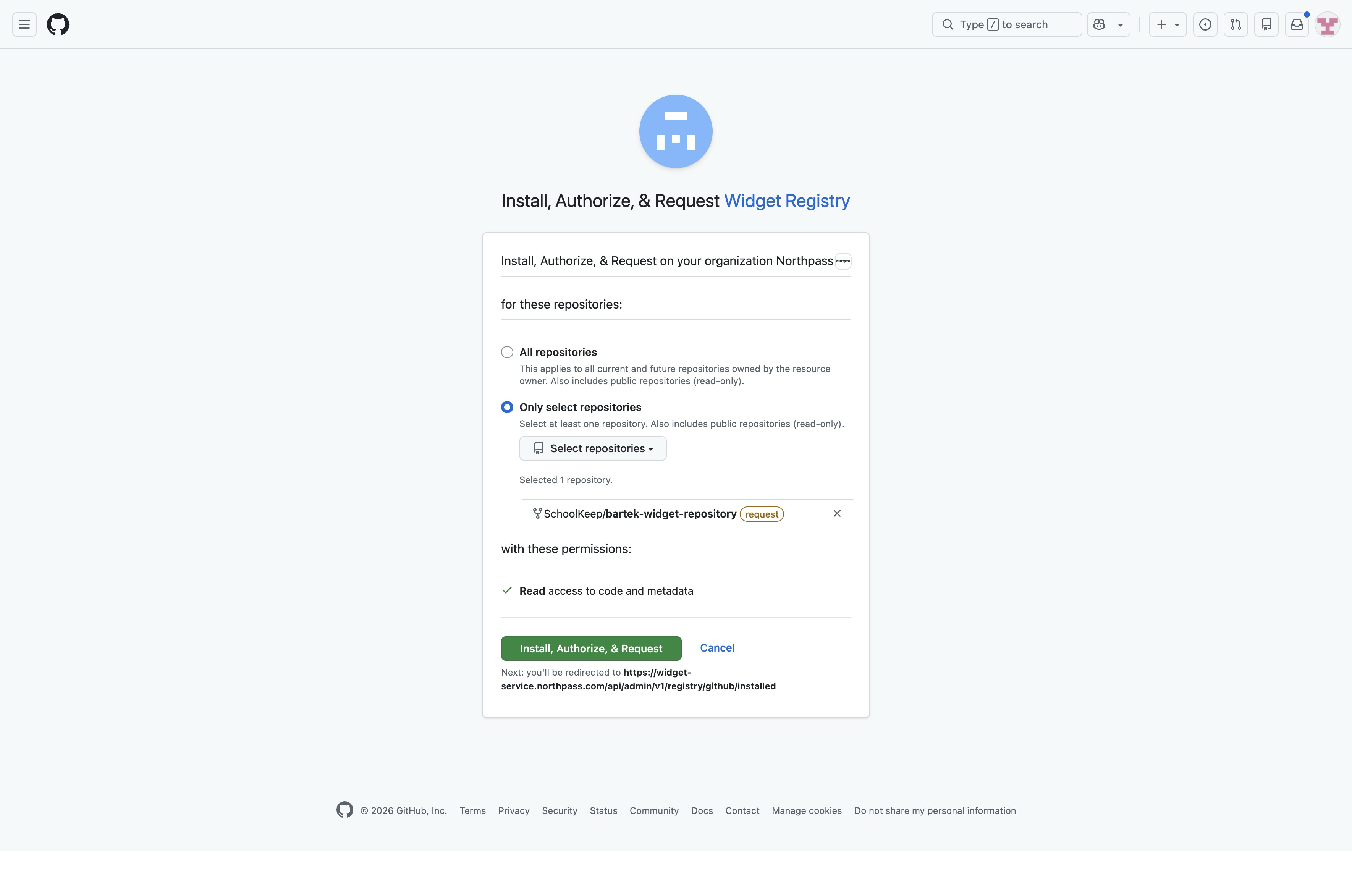
What you'll see on this page:
- Organization selector: Choose which organization to install on
- Repository access: Select "All repositories" or "Only select repositories"
- Request tag: Repositories requiring admin approval show a
requesttag - Permissions: The app requests "Read access to code and metadata"
To request installation:
- Select your organization from the dropdown
- Choose which repositories to grant access to
- Notice the
requesttag next to repositories requiring approval - Click Install, Authorize, & Request to submit your request
Step 3: Approval Pending Page
After submitting your request, GitHub redirects you back to a confirmation page in the platform:
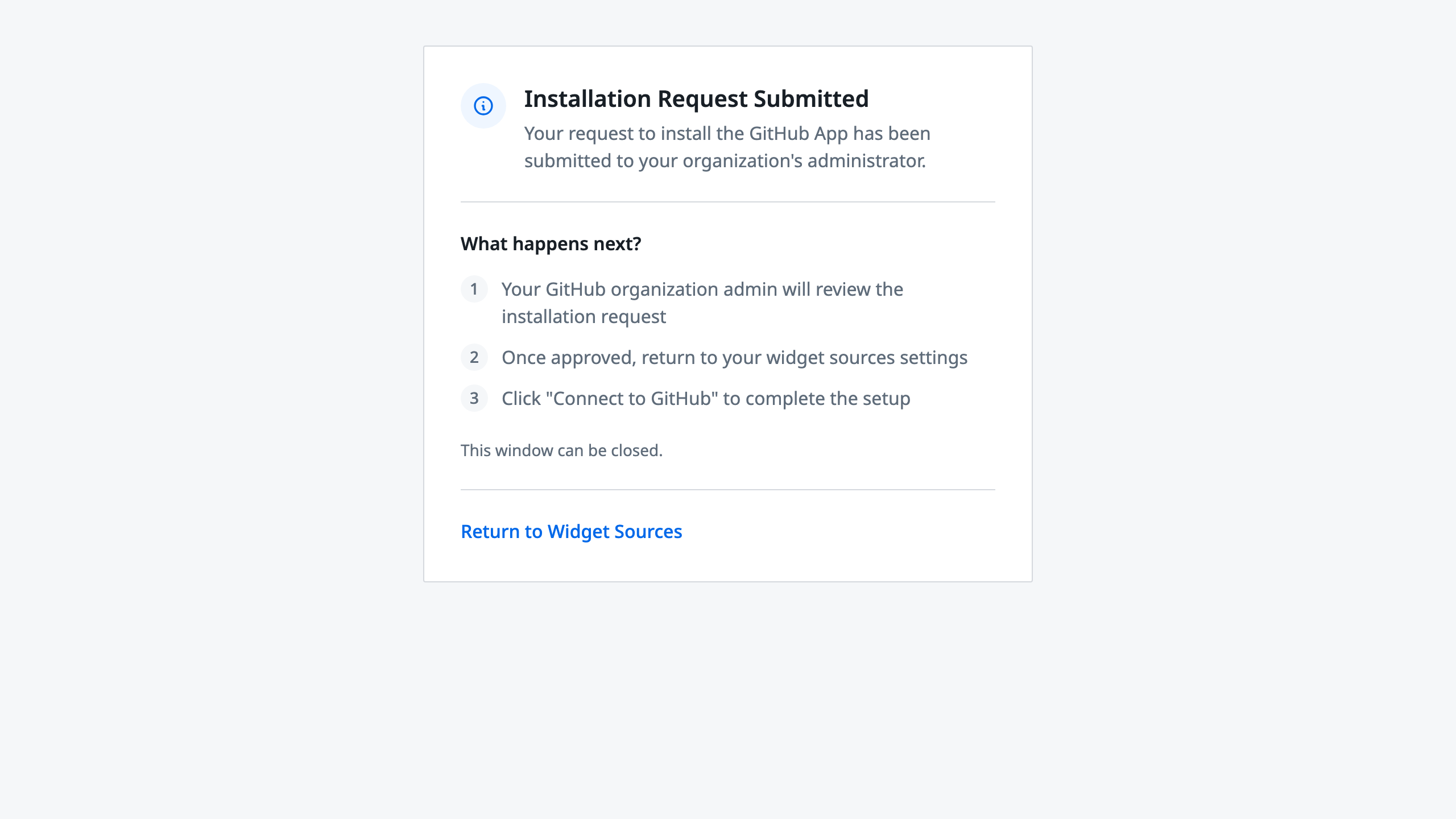
This page shows:
- "Installation Request Submitted" — confirming your request reached your organization admin
- What happens next — three numbered steps explaining the approval and reconnection process
- "Return to Sources" link — takes you back to your Sources settings page
While waiting for approval:
- You can close the browser window — no action is needed until approval
- If you have the Sources page open in another tab, it will automatically detect when approval is granted
- The approval request does not expire, but your browser session may — you'll need to click Manage Accounts again after approval
Note: If you've been waiting for more than a few days, follow up with your organization admin to check the status of your request.
Step 4: Admin Approves the Request
Your GitHub organization admin will:
- Receive a notification about the pending installation request
- Review the app's requested permissions
- Approve or deny the installation
Note: This process may take hours or days depending on your organization's approval workflow.
Step 5: Complete the Connection
Once your admin approves the installation:
- Return to your Sources settings page
- Click Manage Accounts again
- Complete the standard OAuth flow
- Select your installation from the picker
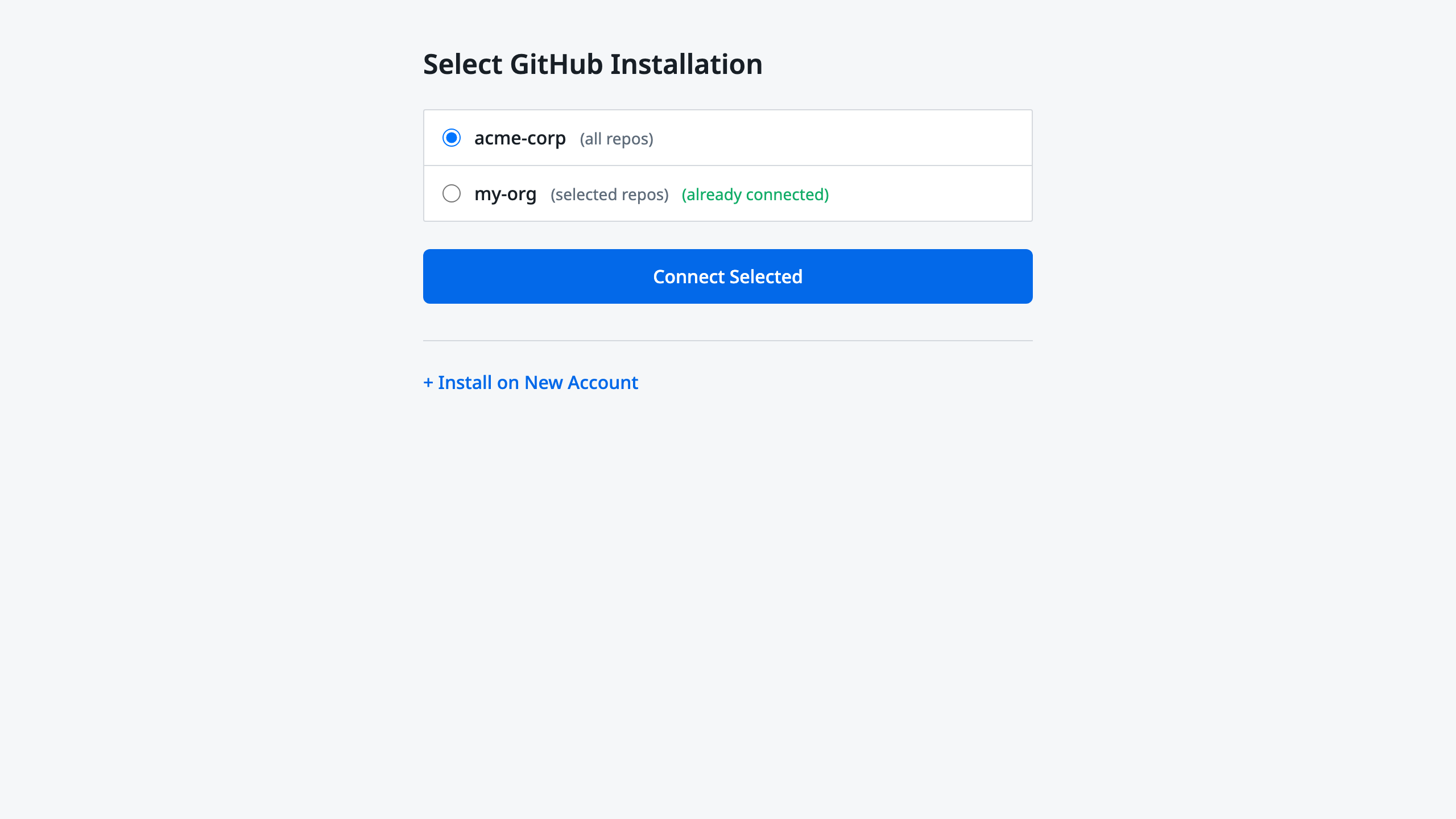
- You'll see the success confirmation screen
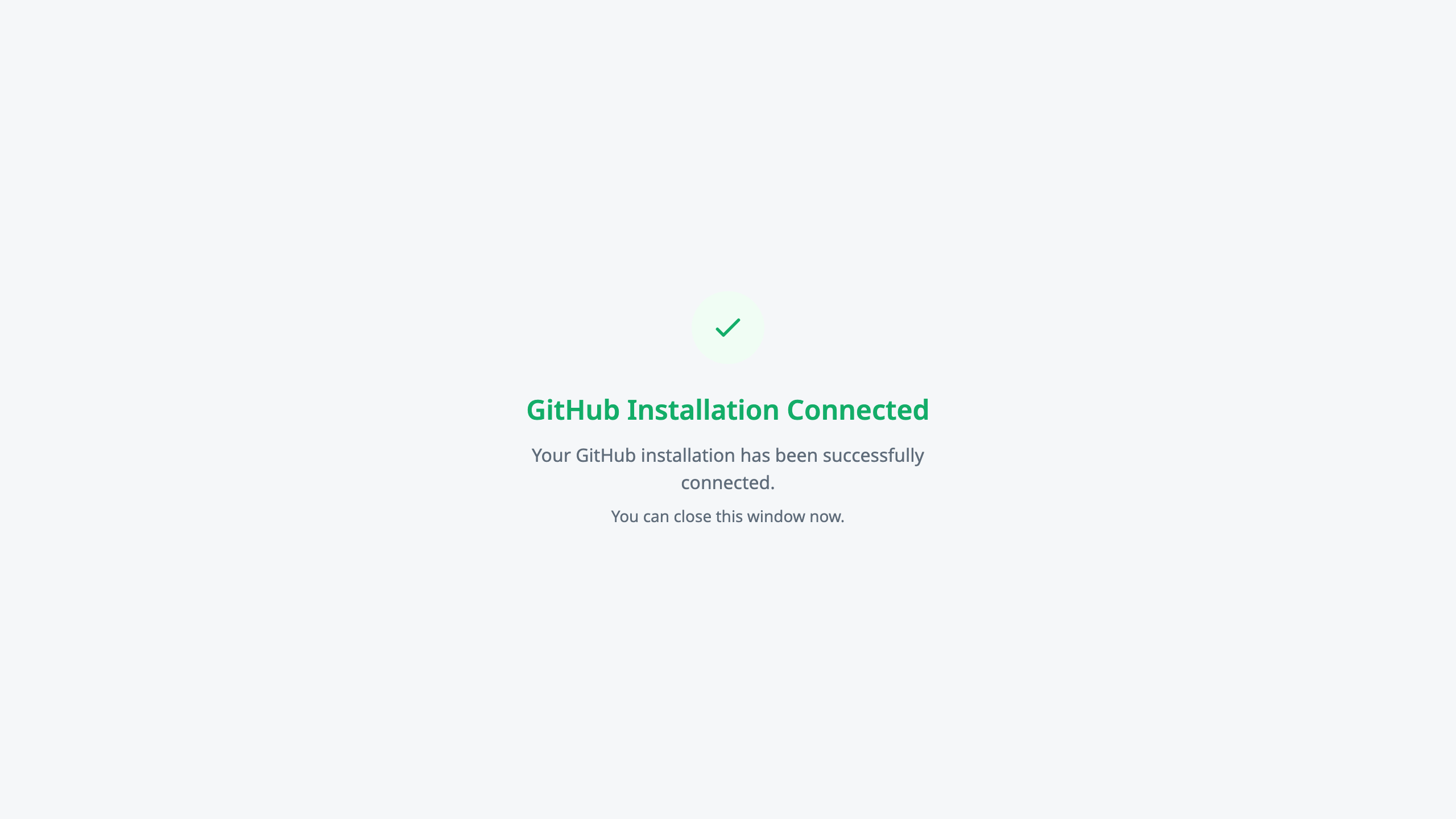
Your GitHub repositories are now connected and ready to use.
What If Approval Is Denied
If your organization admin denies the installation request:
- You won't receive a notification — the request won't be approved
- Contact your admin to understand why it was denied
- Address any concerns they may have about the application
- Submit a new request once issues are resolved
Common reasons for denial:
- Security policy restrictions on third-party apps
- Need for additional review or documentation
- Temporary freeze on new app installations
What Happens Behind the Scenes
For a new installation, your request waits with GitHub until your organization admin approves it — then you return and reconnect. If the app is already installed on your organization, you skip the wait entirely and connect through the picker. If you're the GitHub organization administrator approving these requests, see Approve GitHub Access.
Troubleshooting
"I don't see my organization in the list"
Possible causes:
- You're not a member of that GitHub organization
- The organization has restricted app installations to admins only
- You need to re-authenticate with GitHub
Solution:
- Verify your GitHub organization membership
- Contact your GitHub admin to check organization settings
- Try signing out and back into GitHub
"My admin approved but I still can't connect"
Solution:
- Make sure you're clicking Manage Accounts again after approval
- You must complete the OAuth flow again — approval alone doesn't connect you
- Select your organization's installation from the picker
"The approval is taking too long"
What to do:
- Check with your GitHub organization admin
- Ask them to check Settings → Third-party access → Pending requests
- The request may be in a queue or require additional review
"I see 'Request' instead of 'Install' for my organization"
This is expected. It means your organization requires admin approval. Follow the steps in this guide to request and complete the installation.
For more troubleshooting help, see Common Issues.
Frequently Asked Questions
How long does approval take?
Approval time depends on your organization's policies. It can range from minutes to several days. Contact your GitHub admin for your organization's typical approval timeline.
Do I need to request approval every time?
No. Once the app is approved and installed, you won't need approval again unless:
- The app is uninstalled and needs to be reinstalled
- The app requests additional permissions
Can I use a different organization while waiting?
Yes. If you have access to other GitHub organizations that don't require approval (or are already approved), you can connect those while waiting.
Someone else in my org already installed the app. Do I need approval?
No. If the app is already installed on your organization (by another community member or team member), you won't see the "Request" button. Instead, you'll go through the simple OAuth flow and see a picker to select the existing installation. No admin approval is needed in this case.
What permissions does the app request?
The application requests:
- Repository access: To read widget, script, and stylesheet files from your repositories
- Webhooks: To receive notifications when you push changes
- Metadata: To list available repositories
Is my code safe?
See Content Security for how the platform handles your repository content.
Getting Help
If you continue to experience issues:
- Check this guide for troubleshooting steps
- Contact your GitHub admin for approval-related issues
- Talk to your Gainsight team if the issue persists after admin approval
Next Steps
- Connect Your GitHub Account — Standard connection flow
- Repository & Branch Settings — Configure repositories after connection
- Common Issues — More troubleshooting help